Release notes – 1 September 2025
Surveys · Tasks · Responses · Recruitment
Scheduled publishing, an add-card wizard, a new single-select question card, a top task results card, recruitment upgrades, and much more!
Summer 2025 has been full of improvements, big and small. We have released several major features alongside hundreds of smaller improvements and bug fixes.
1.0 Improved publishing with scheduling
First up is a completely new publishing system that lets you set when surveys should start and stop.
1.1 Schedule publishing in advance
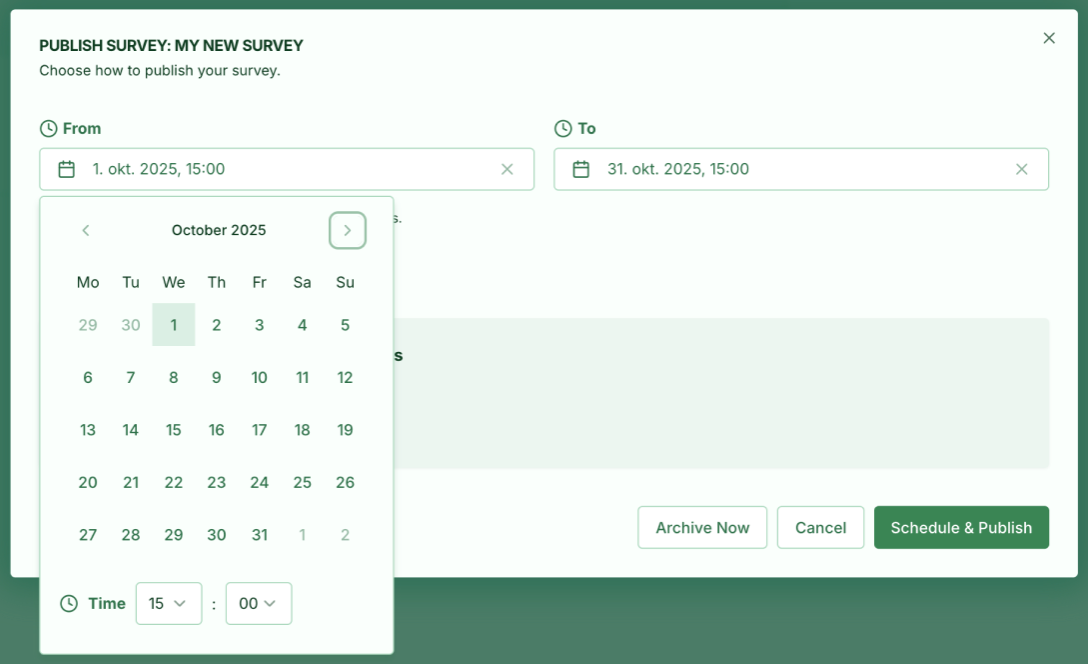
You can now choose the exact date and time your survey goes live. This makes it easier to keep a survey visible for a specific period and have it stop automatically.
Scheduled publishing is only available to customers with a Pro subscription, unless otherwise agreed.
1.2 New publishing statuses
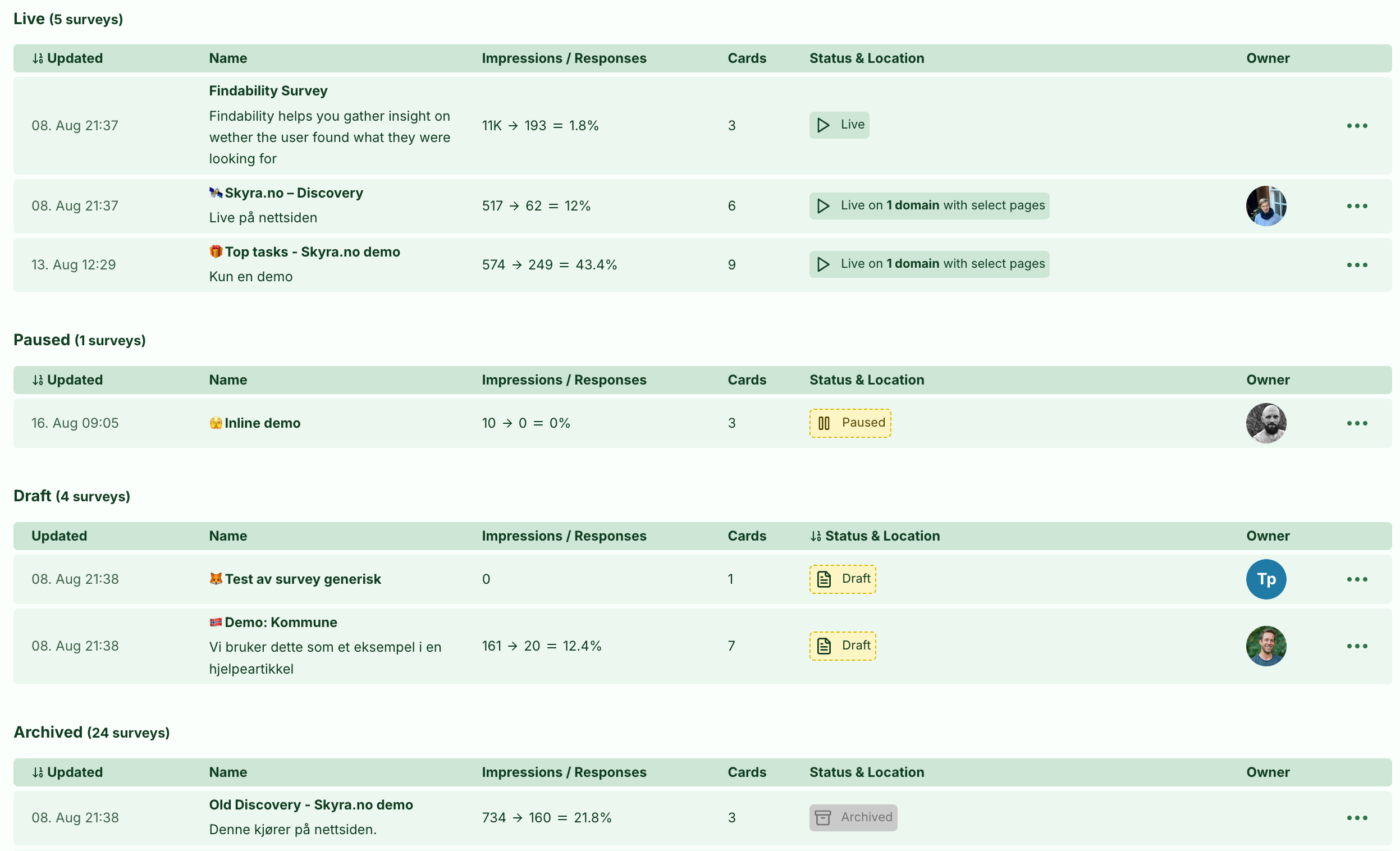
We have introduced new statuses to give you a clearer overview of your surveys. There are now five statuses: Draft (work in progress), Scheduled (set to be published), Live, Paused (temporarily stopped), and Archived (finished).
A scheduled survey looks like this:

1.3 Improved user experience
All status badges are now clickable and show detailed information in tooltips. We have redesigned the publishing dialog to make navigation easier, and its buttons change dynamically based on the survey's current state. This makes publishing status much easier to understand and control.
2.0 Single Select cards and Add card improvements
We have expanded your toolkit with a new card type called Single Select.
2.1 Single Select cards
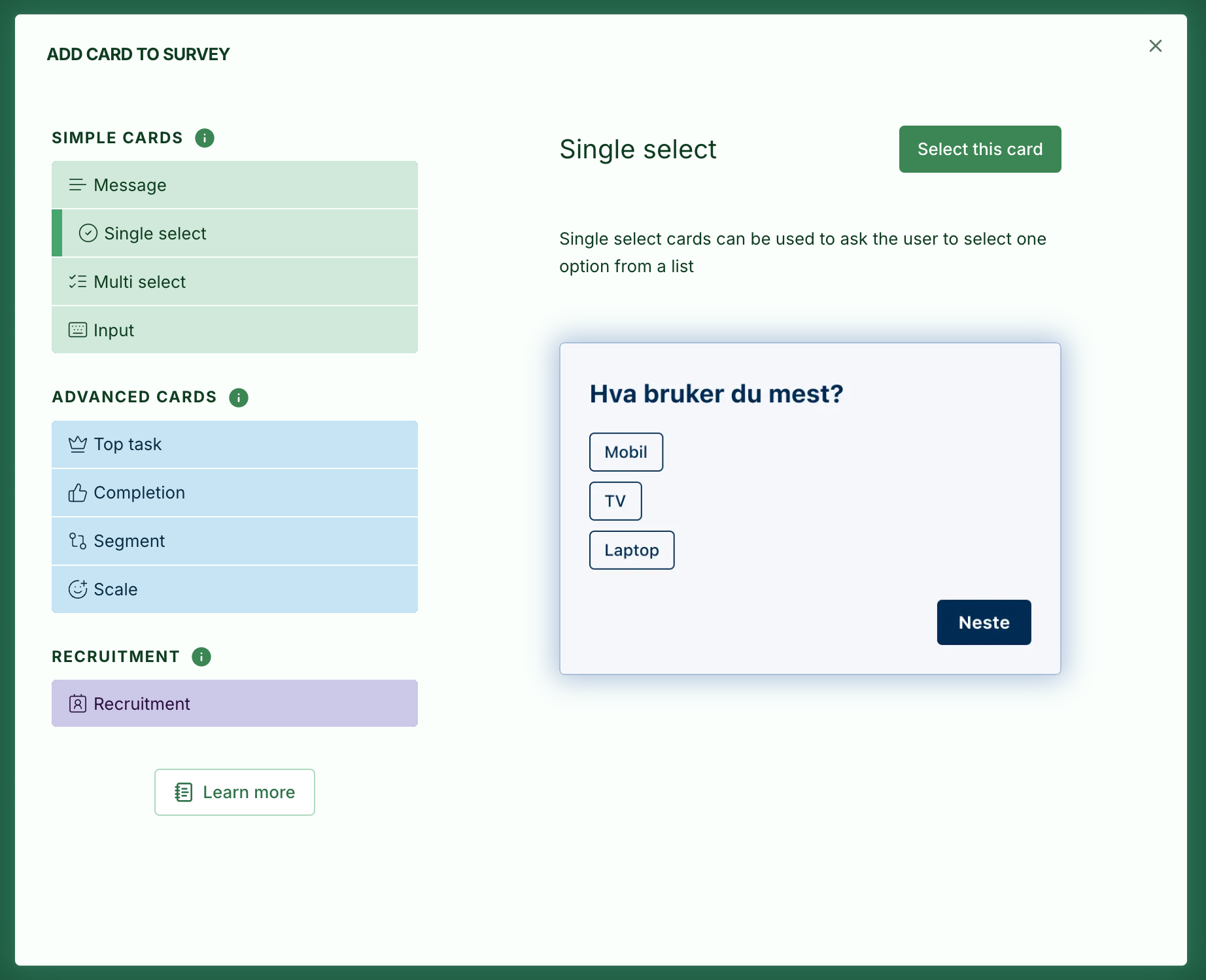
Single Select is perfect for questions where respondents should choose just one option. It is quick to set up and configure, and fully integrated with all reports so you can explore the responses. If you are looking for radio buttons, this is our equivalent, even though the controls are not technically radio buttons.
Why did we create Single Select? Previously, you had to use a Segment card to let a respondent choose one answer, but that was more complex than necessary in some cases. Segments have settings for use across surveys, while Single Select belongs to just one survey.
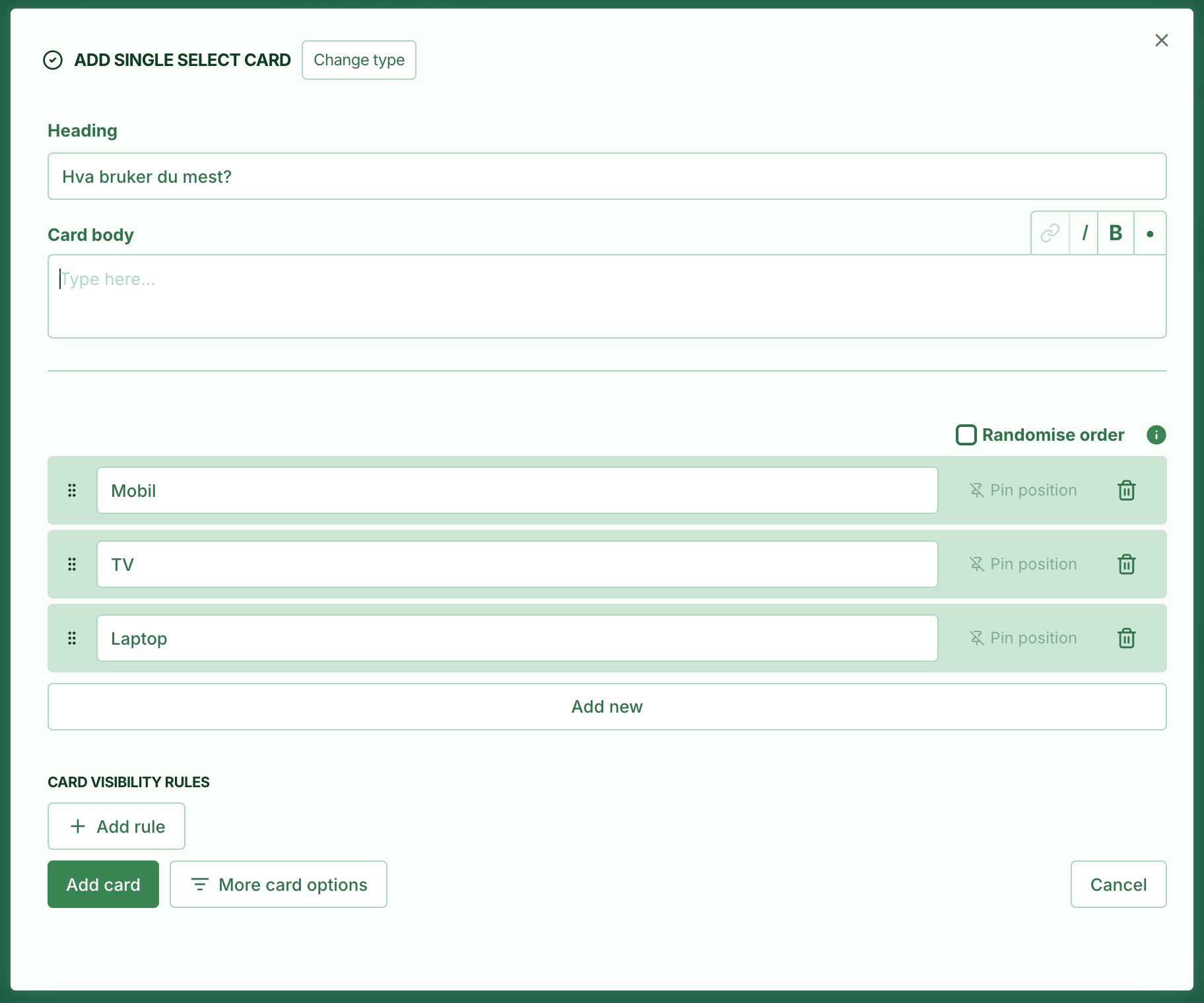
Note: A Single Select configuration cannot be shared across surveys like Segment and Top Task cards. It belongs only to the survey it was created in.
2.2 Add card wizard
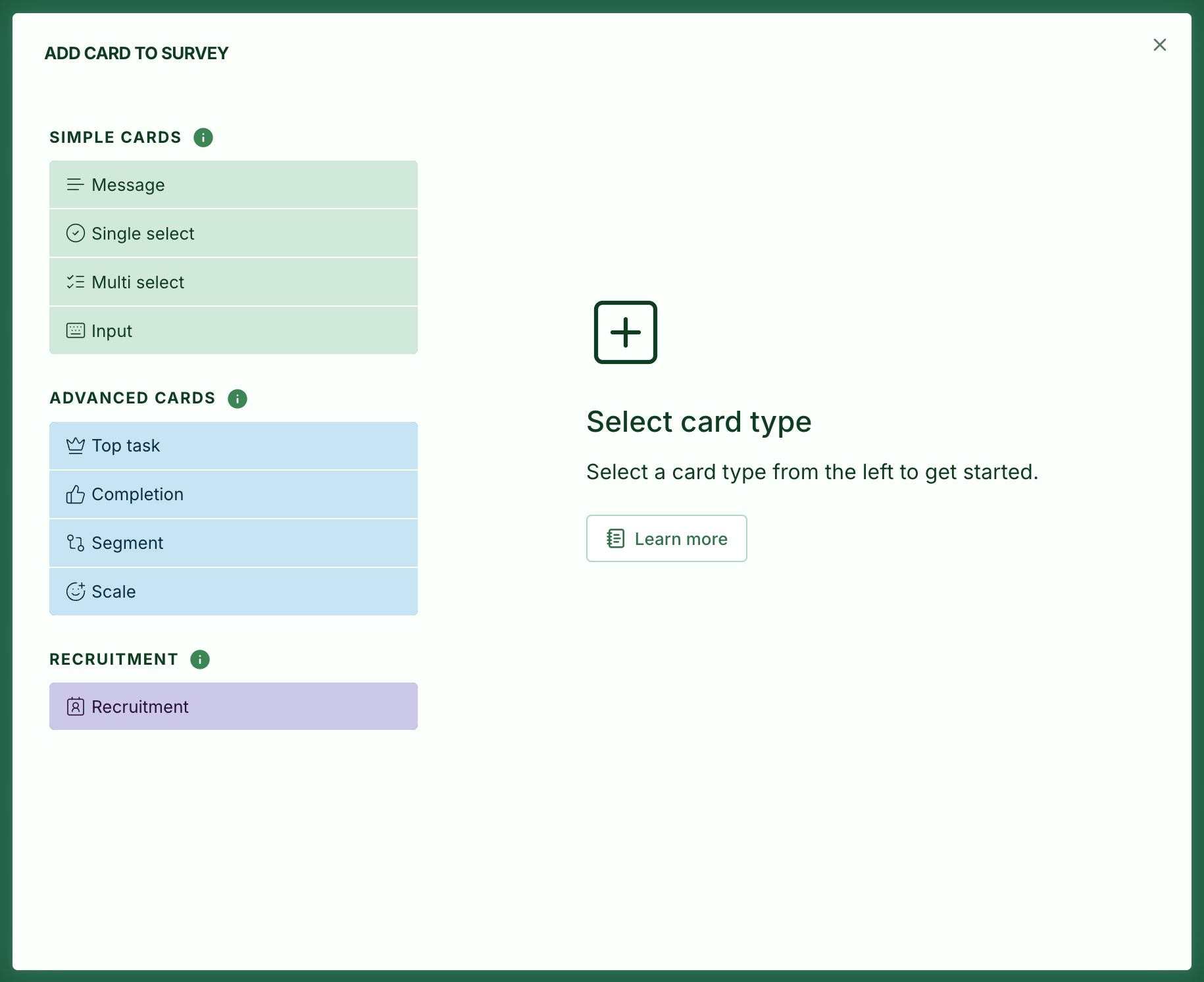
We have replaced Add card with a new flow that explains the different card types more clearly, offers a preview, and provides quick access to the help centre.
Card types are also grouped into Basic, Advanced, and Recruitment.
- Simple cards: Data from simple cards is never aggregated across surveys. These are the main cards used in basic surveys.
- Advanced cards: Advanced cards use global building blocks shared by multiple surveys. Use these when you want to collect data that can be aggregated across surveys.
- Recruitment: Recruitment cards add contacts to the list under Recruitment in the menu. They are designed to collect contact details for recruiting participants for user testing. People who sign up are added to the contact list.
2.3 New visual indicators
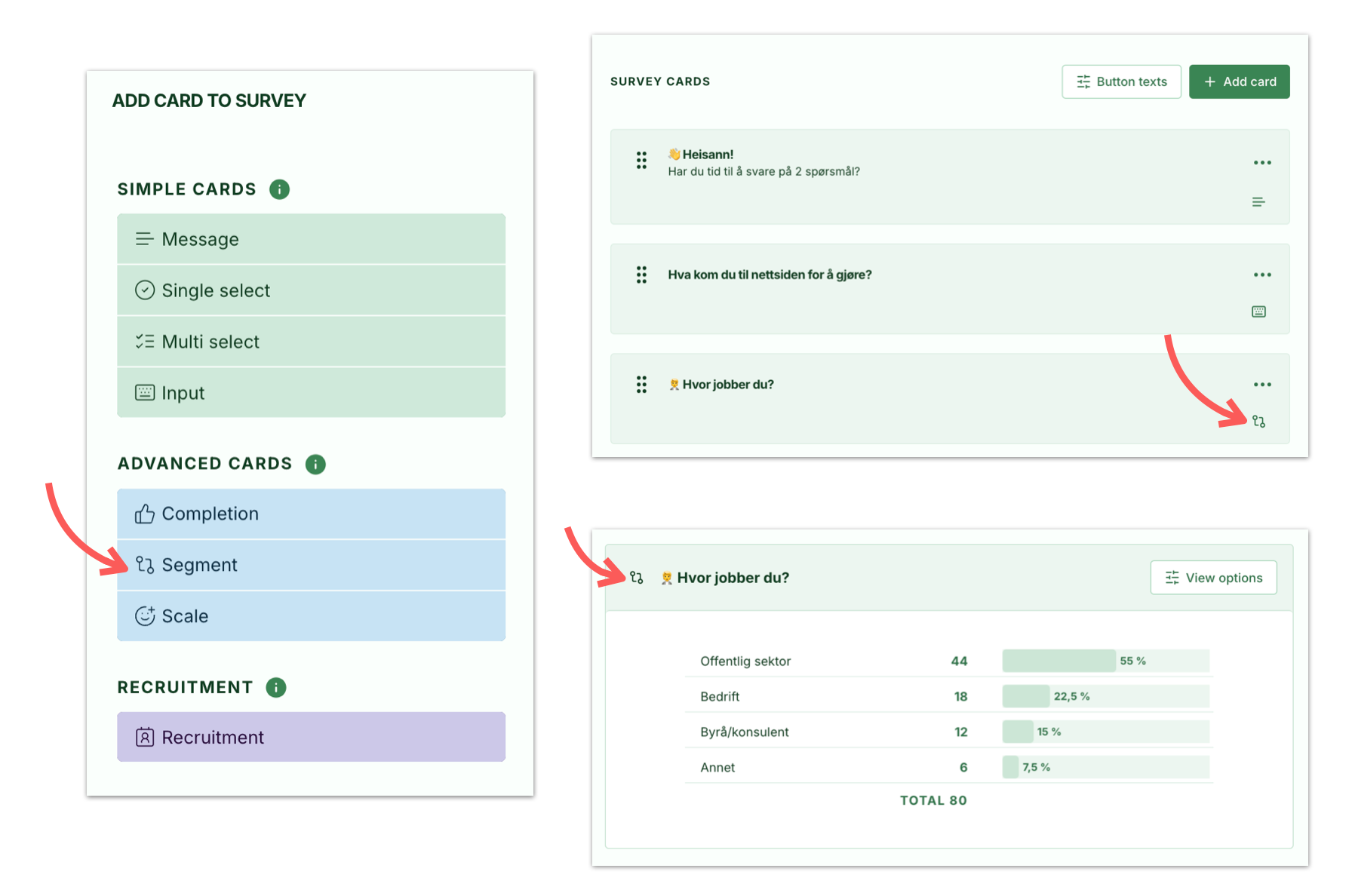
New visual indicators identify card types, making them easier to distinguish when working with surveys.
In this example, the Segment indicator appears consistently in Add card, Survey edit, and the results card.
3.0 Top task improvements
3.1 Survey top task report
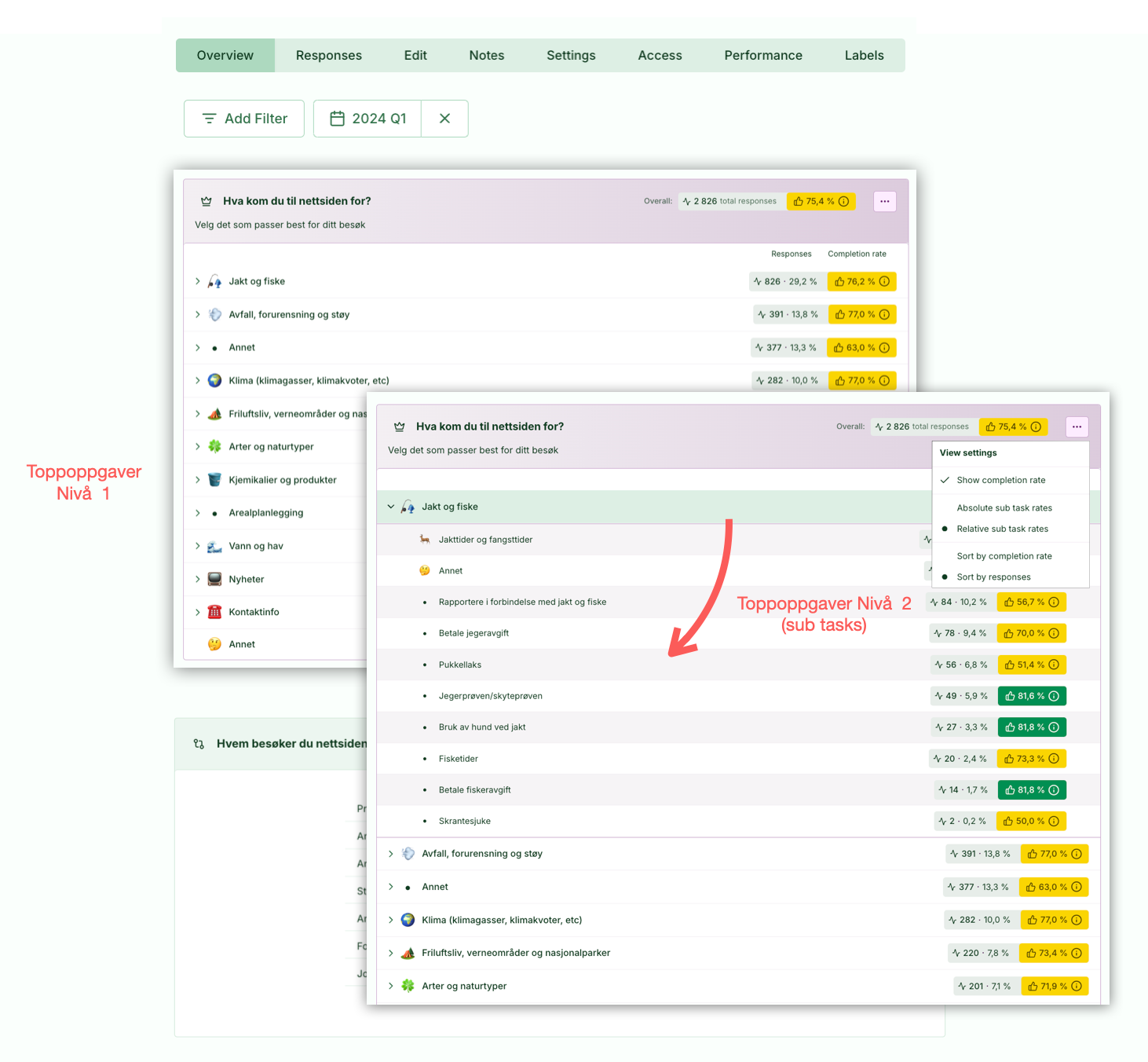
For top task surveys, you can now see top task results in a new results card under Survey > Overview > Top Task Report. This makes it faster to read key top task metrics and navigate the results of a single survey.
The Survey top task report has several advantages over the traditional Task List (under Top tasks in the menu):
- Always shows figures for a single survey, with no option to view results across surveys.
- A clearer overview of level 1 and level 2 and how they relate to each other, if the top task survey has two levels.
- The option to view level 2 demand as a proportion of its own group.
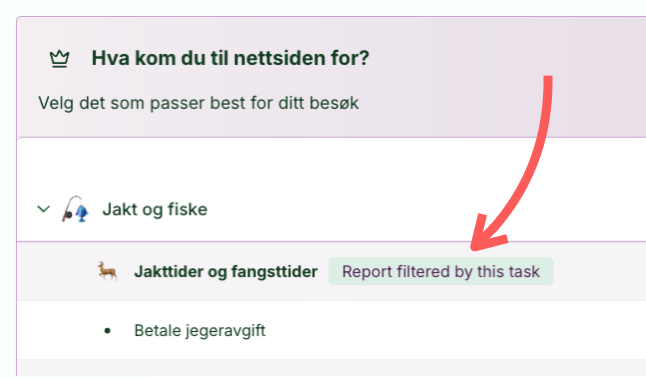
- Filtering: Click a top task to filter the rest of the report. You will then see only responses from visitors who came to carry out that task when they answered the survey.
Filtering
Click a top task to filter the entire report by that task.
3.1 Task list average completion times
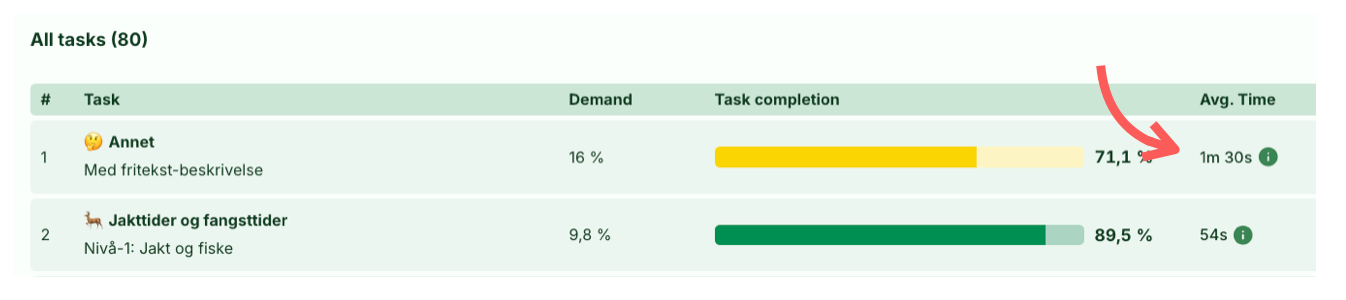
Average task completion times are now visible in the task list and on the task page. Time is measured from when the first task is selected in the task card until the completion card is answered.
4.0 Duplicate surveys
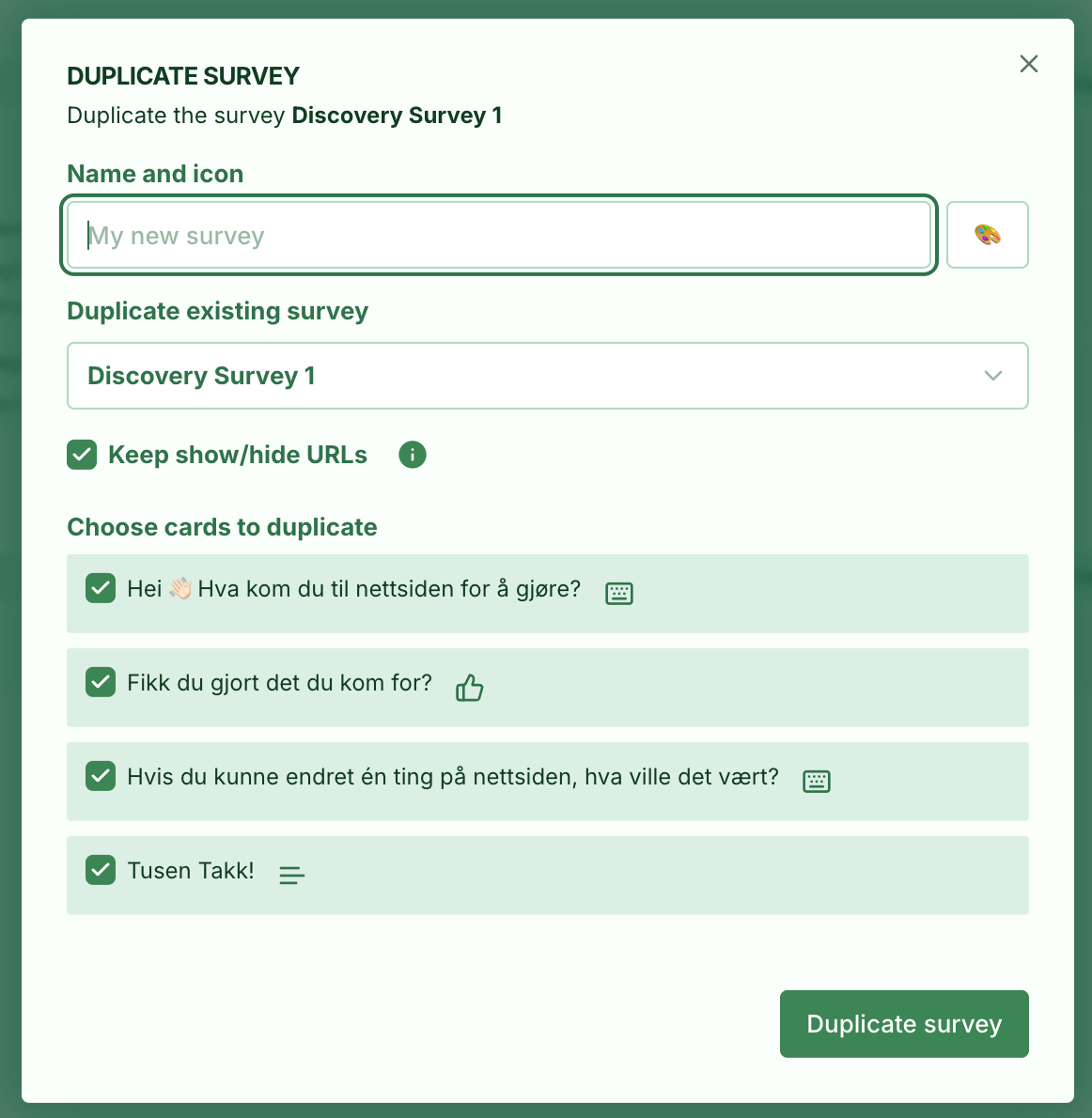
A much-requested feature that makes it easy to copy existing surveys, saving time and keeping them consistent.
4.1 Complete duplication
You can now copy entire surveys with all settings, card types, and configurations intact. The feature respects team-based permissions, so only authorised users can duplicate surveys.
4.2 Visual improvements
We have added new card-type indicators in both editing and duplication views. The duplication dialog also has improved scrolling and navigation, along with better team and access controls.
5.0 Improved response tables
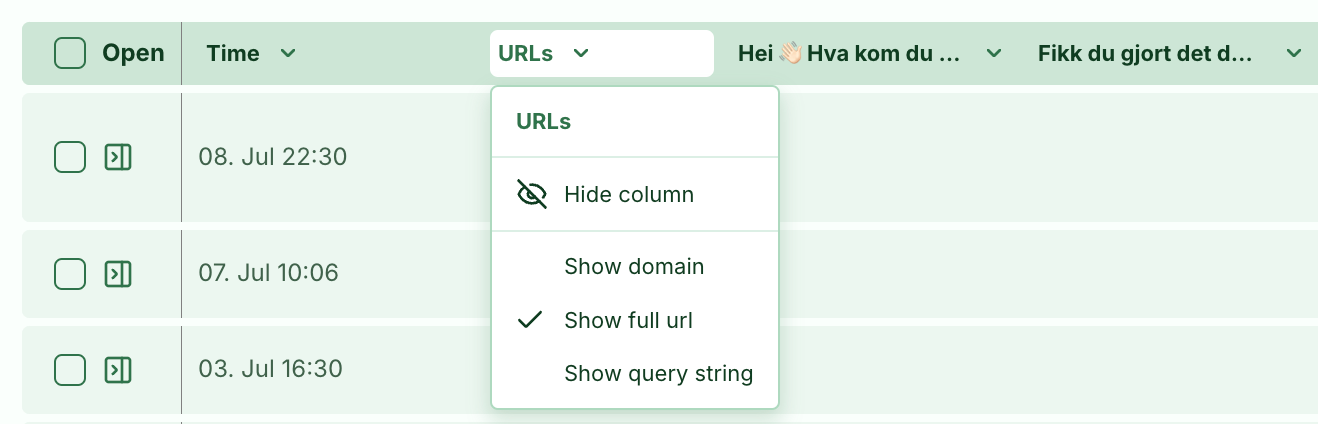
All responses, the Survey responses tab, and the Top task responses tab now have a more readable table header, with display options available for each column.
Click a column header to see the options for that column.
6.0 Recruitment version 2
We have upgraded the recruitment module with new capabilities. We will continue working on it throughout the year, but here are the first two changes.
6.1 We now send an email to participants!
This does not apply to existing surveys and cards. You can turn it on or off in the Recruitment Card settings:

Participants receive an email explaining that they have been added to your contact list, with an option to unsubscribe if they wish.
(The example says Skyra, but this will use the name on your account.)

The link takes them to a page where they can unsubscribe or find information such as the privacy policy configured in the card.
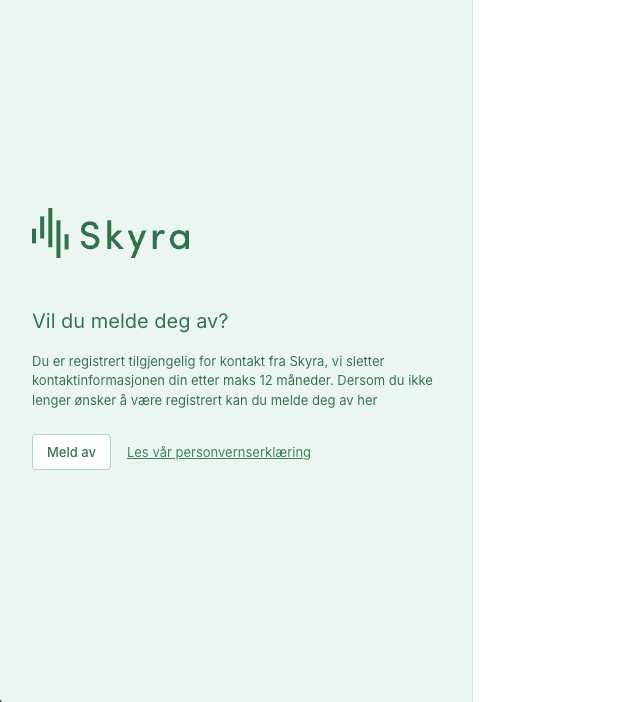
Participants also receive an email confirming their removal. Their contact details and name are removed from the session, while the rest of the response thread is retained so you do not lose important context.
6.2 Recruitment Dashboard updates
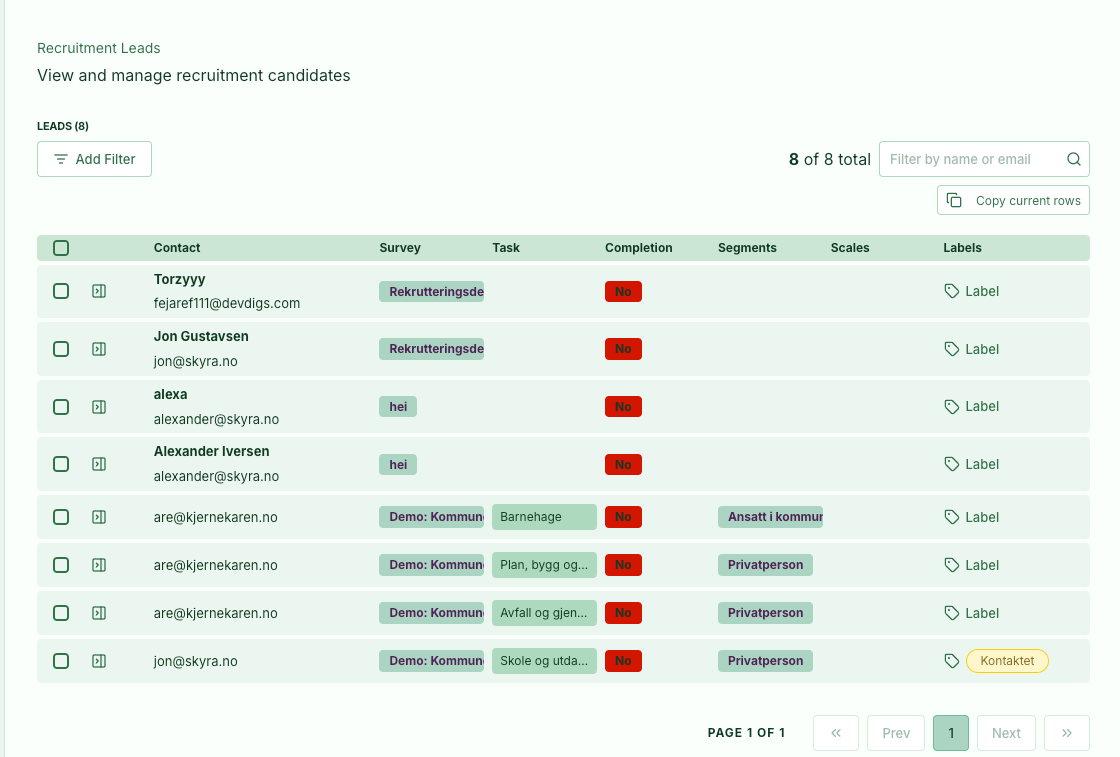
We have updated the Recruitment Dashboard with more information and filtering options. You can now see which segments and scales a participant has answered. You can also delete contacts here when needed.
7.0 Survey widget
7.1 Clearer transitions between cards
We have made the animation when moving to the next or previous card more noticeable, so the transition is clear even when the cards look very similar.
7.2 Clickable arrows on cards with many options
These arrows previously only indicated that more options were available by scrolling. You can now click them to scroll as well.
7.3 WCAG improvements
Links have better contrast in dark mode.
The root element now uses aside instead of div to provide the correct accessibility landmark.